 This wiki is no longer being updated as of December 10, 2025.
|
Listware for Excel:SmartMover:Processing: Difference between revisions
Jump to navigation
Jump to search
No edit summary |
No edit summary |
||
| Line 11: | Line 11: | ||
|- | |- | ||
|[[Listware for Excel:SmartMover Tutorial|Tutorial]] | |[[Listware for Excel:SmartMover Tutorial|Tutorial]] | ||
|- | |||
|[[Listware for Excel:SmartMover:PAF|PAF]] | |||
|- | |- | ||
| | | | ||
Revision as of 21:39, 23 September 2014
← Listware for Excel Reference
| SmartMover NCOA Navigation | ||||||||
|---|---|---|---|---|---|---|---|---|
| ← Check and Verify | ||||||||
| Overview | ||||||||
| Tutorial | ||||||||
| PAF | ||||||||
| ||||||||
|
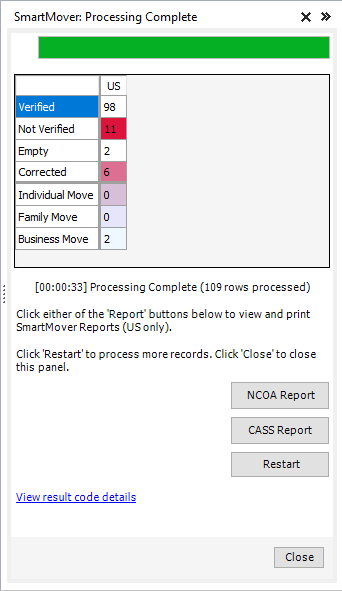
Processing will display the progress of your data cleansing.
- NCOA Report
- Click this button to view (and then optionally print) the NCOA Summary Report.
- This report will contain your PAF information, the name of the list processed, and Change of Addres statistics.
- CASS Report
- Click this button to view (and then optionally print) the 3553 CASS Form.
- This report will contain address correction statistics.
- Restart
- If you want to restart the data cleansing process (possibly to change some settings, process more records, etc.) click 'Restart'.
- Close
- Click 'Close' to close the Listware Add-in. Make sure to save your file before you exit Excel, or you may lose your cleansed data.
Credits Used
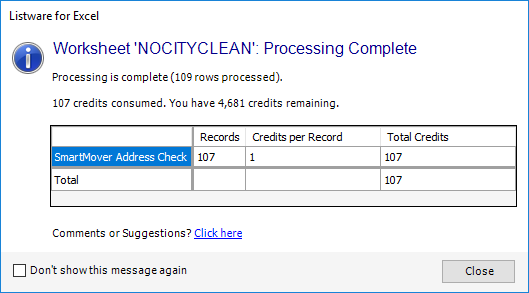
Once processing is complete a window will pop-up, displaying the amount of credits your data cleansing process used.